If you’re new to gaming, both PlayStation 5 (PS5) and Xbox Series X/S are excellent choices. The setup process is simple, but each console has slightly different steps and features. This guide will help you set up both systems easily and choose what fits you best.
1. Quick Difference: PS5 vs Xbox (For Beginners)
Before setup, here’s a simple comparison:
PS5 (PlayStation 5)
- Strong exclusive games (Spider-Man, God of War)
- Fast SSD loading times
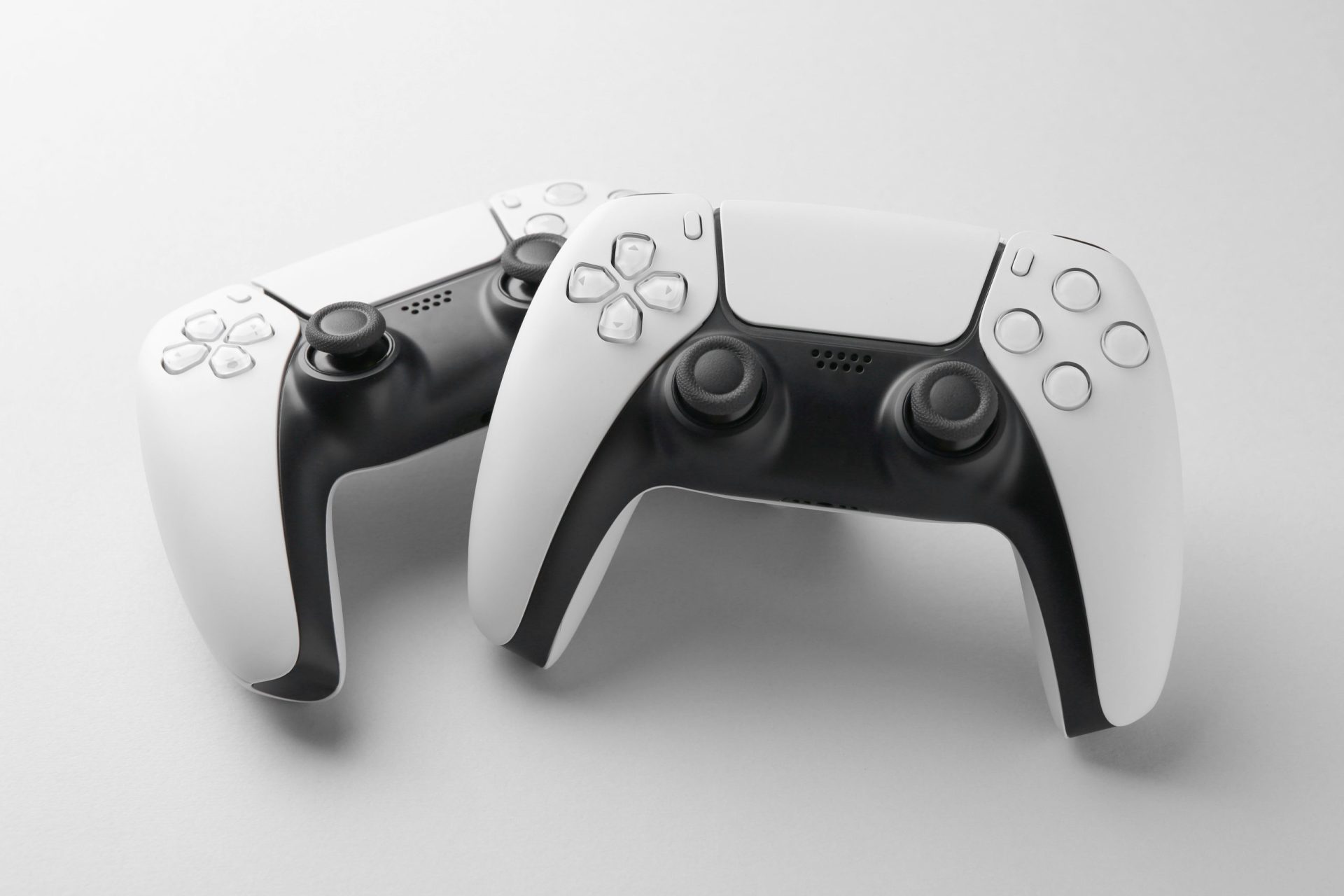
- DualSense controller with vibration and adaptive triggers
- More “cinematic” gaming experience
Xbox Series X/S
- Xbox Game Pass (huge game library subscription)
- Strong backward compatibility (old games work well)
- Simple ecosystem for beginners
- Slightly more storage and flexibility in some models
Simple decision:
- Choose PS5 if you want story-based exclusive games
- Choose Xbox if you want more games for less money (Game Pass)
2. PS5 Setup Guide (Step-by-Step)
Setting up a PS5 is very beginner-friendly.
Step 1: Unbox and place console
- Put PS5 on a flat surface (horizontal or vertical)
Step 2: Connect cables
- Plug HDMI cable into TV
- Connect power cable to outlet
- Turn on console
Step 3: Connect controller
- Use USB cable first
- Press PS button to pair wireless mode
- Then disconnect cable
Step 4: Internet setup
- Go to Settings → Network
- Connect WiFi or LAN cable
Step 5: Create or sign in account
- Sign in to PlayStation Network
- Or create a new account
Step 6: System update
- Download latest software update
Step 7: Start gaming
- Install games from PlayStation Store
PS5 beginner tip:
Always update system first for better performance and stability.
3. Xbox Setup Guide (Step-by-Step)
Xbox setup is even more beginner-friendly because of its guided system.
Step 1: Connect console
- Plug HDMI into TV
- Connect power cable
- Turn on Xbox
Step 2: Pair controller
- Insert batteries or charge controller
- Press sync button on console and controller
Step 3: Internet setup
- Connect WiFi or Ethernet cable
Step 4: Sign in or create account
- Use Microsoft account
- This connects Xbox Live + Game Pass
Step 5: Update system
- Download latest Xbox software update
Step 6: Install games
- Use Microsoft Store or Game Pass library
Xbox beginner tip:
Game Pass gives instant access to hundreds of games without buying each one separately.
4. Controller Setup Differences
PS5 Controller (DualSense)
- Advanced haptic feedback (feels realistic vibration)
- Adaptive triggers (pressure changes in shooting/racing games)
- Best for immersive gaming experience
Xbox Controller
- More traditional layout
- Very comfortable for long gaming sessions
- Simple and reliable connection
Beginner choice:
- PS5 = more immersive feel
- Xbox = easier and more familiar
5. Gaming Experience Setup Tips
For both consoles:
- Use a TV with at least 60Hz (120Hz preferred)
- Enable “Game Mode” on TV for low lag
- Use HDMI 2.1 for best performance (if available)
- Keep console ventilated (don’t block airflow)
6. Online Services Setup
PS5:
- PlayStation Plus (online play + free games)
- Digital store for purchases
Xbox:
- Xbox Live (online play)
- Game Pass (subscription library)
Key difference:
Xbox Game Pass is more beginner-friendly because it gives many games at once.
7. Storage and Game Installation
PS5:
- Limited storage compared to Xbox
- Use external SSD for more space
Xbox:
- More storage options in higher models
- Easy expansion with storage cards
Final Thoughts
PS5 is best if you want:
- Story-driven exclusive games
- Advanced controller experience
- Cinematic gameplay
Xbox is best if you want:
- More games for less money (Game Pass)
- Simple setup and ecosystem
- Better backward compatibility
Simple conclusion:
- PS5 = premium gaming experience
- Xbox = value + large game library
Both are easy to set up and beginner-friendly, so the best choice depends on your gaming style.
If you want next, I can write:
- “PS5 vs Xbox Full Performance Comparison”
- Or “Best Games to Play First on PS5 and Xbox”
- Or “Beginner Gaming Setup Guide (Console + Accessories)”